Google Business Profile Verification: Fixing Common Problems
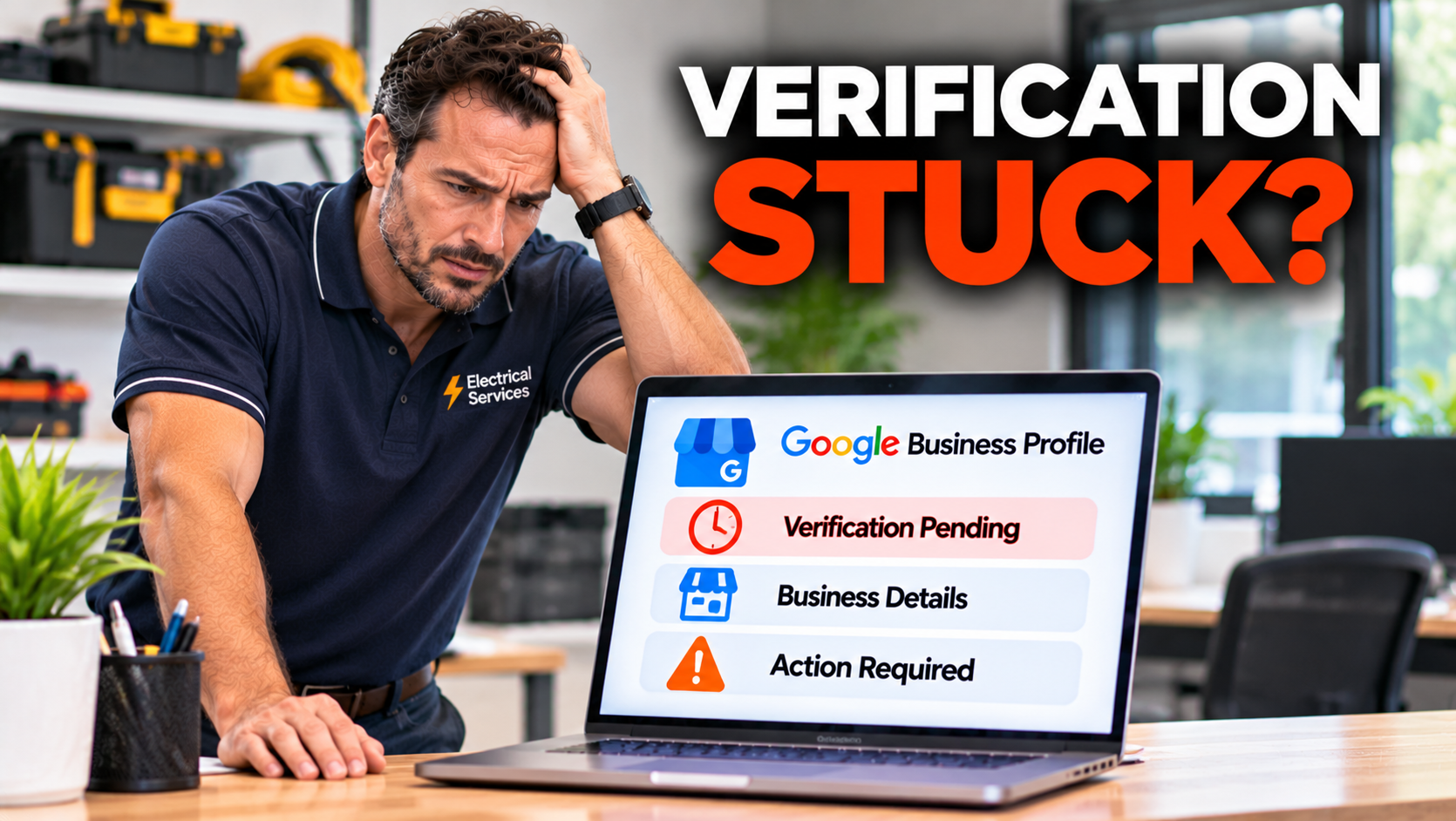
Until your Google Business Profile is verified, you are mostly invisible. You may have a fully filled in profile, great photos, and happy customers, but if Google has not confirmed that you are a real business at a real place, your listing will not do much work for you. And verification is where many small businesses get stuck. A postcard that never arrives, a video that is rejected for no clear reason, a code that never comes. At Bolder Digital, we help businesses through this regularly, and the same handful of problems account for most of it. Here is how verification works, what to do when it goes wrong, and what not to do.
Why Verification Matters
Verification is Google’s way of checking that your business exists, that it is where you say it is, and that you are authorised to manage the profile. It protects customers from fake listings, and it protects real businesses from hijacking. Until you are verified, you generally cannot manage your profile fully, and it is unlikely to show well in local results.
How Google Decides What You See
You do not get to choose your verification method. Google offers the options it considers appropriate, based on details such as your business type, category, location, and history. The possible methods are:
Phone or text: a code sent to your business number. Automated phone menus cannot receive it.
Email: a code or link sent to the address shown on screen.
Video recording: one continuous video of your business, recorded and uploaded from your phone.
Live video call: a video call with a Google representative, offered in some cases.
Postcard: a card mailed to your business address with a five digit code. Most arrive within about two weeks, and the code expires after 30 days.
Search Console: for some businesses with a verified website, a quick check.
In 2026, video verification is the default for most new profiles and for profiles that change address, because postcards and phone codes were easier for spammers to abuse. Phone and email codes arrive within minutes, and a video review takes up to five business days, sometimes longer.
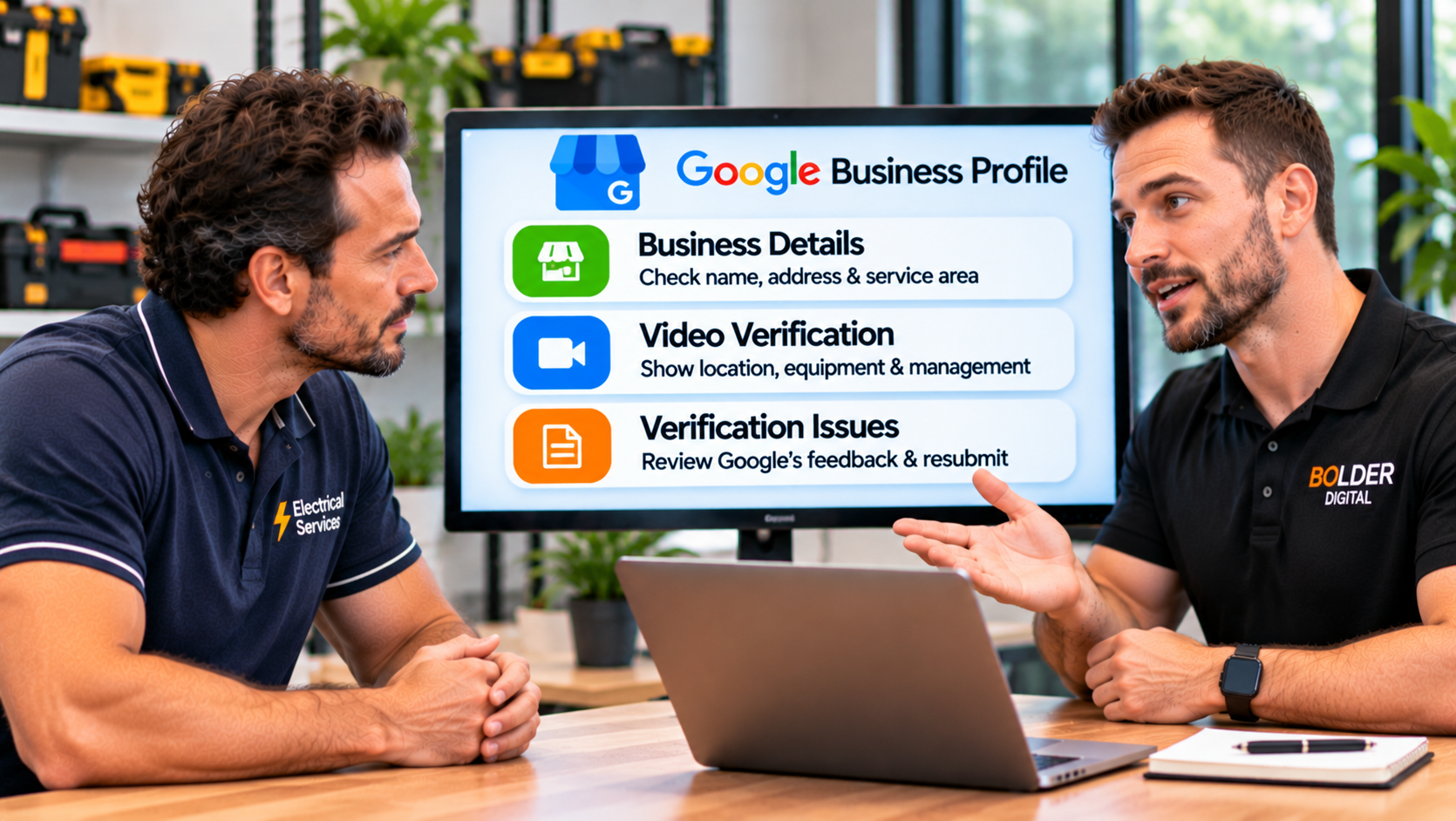
How Video Verification Works
If video is your option, it is worth doing properly the first time.
Record it inside the verification flow, on a mobile device, through your Business Profile or the Google Maps app. You cannot record it separately and upload it later.
One continuous, unedited take. If you stop and start again, it can be rejected.
At least 30 seconds, and ideally a minute or two. Much longer videos can cause upload errors.
Show three things: where you are, that the business exists, and that you manage it.
For a shopfront business, start outside with the street and nearby landmarks, show your permanent sign with the business name, then go inside and show your counter, stock, or workspace. Finish by showing that you have access to areas only staff can use, such as the till or back office.
For a service area business, where you travel to customers, there is usually no storefront sign. Show street signs or landmarks near your registered location, your branded vehicle, and your tools and equipment. Show proof that you run the business, such as unlocking the vehicle or equipment storage, or a document in the business name, like an invoice. Google’s guidance is that a business without permanent on site signage should be listed as a service area business, not a storefront.
Tips for a clean recording:
Plan your route before you press record.
Film in daylight, and during your opening hours.
Make sure the name on your sign matches your profile name exactly.
Check your phone has enough storage and battery.
Use the same Google account that manages the profile.
Common Problems and How to Fix Them
1. Video is the only option, and you do not have a shopfront.
Google will not switch you to another method for convenience. Prepare using the right checklist for your business type, and film your vehicle, tools, and service area. Make sure your profile is set up as a service area business if that is what you are.
2. Your video was rejected.
Open your profile on your phone and look for “Review issues”. Tap it, and read the reason. Typical reasons include the business name not being visible on signage, no nearby area shown, or missing proof that you manage the business. Fix that specific point, and record a new video that includes everything from before plus what was missing. A rejection is a review outcome, not a ban.
3. The video will not upload.
Uploads can be unreliable. Try again a few times, check your connection, and consider a shorter recording of around a minute.
4. The video has been “in review” for too long.
Allow up to five business days, and sometimes longer. Do not upload another one to speed things up. If you see no change after about a week, use Google’s verification support options to check the status.
5. The postcard never arrived.
Most arrive within 14 days. If yours has not, check the address is correct and deliverable, then request a new one. Requesting a new code cancels the old one, so use only the latest. Rural addresses and new buildings can cause delivery trouble, so confirm Australia Post can deliver there.
6. The postcard code is rejected or expired.
Codes expire after 30 days. They can also fail if you edited your business name, address, or category after requesting the card, or if a newer code replaced it. Do not change anything while a postcard is on its way.
7. The phone code never arrives.
If your number goes through an automated phone menu, it cannot receive the code. A landline may not receive texts. Use a number that rings through to a person, or a mobile that can receive texts, and request the code again.
8. The email code never arrives.
Check your spam folder, and confirm you have access to the exact address shown on the screen.
9. “No more ways to verify”.
After repeated failures, Google may show this message. Do not keep resubmitting. Contact Google Business Profile support through the help workflow and ask for a review, and use Google’s verification status tool if you are offered it.
10. The profile is already claimed.
If someone else, such as a former employee, web designer, or agency, verified your profile, you will need to request ownership, and the current owner may have to approve. If you cannot reach them, Google has a process for ownership disputes, and for some service area businesses ownership transfers go through Google support.
11. Your address is not eligible.
Google requires that a business has in person contact with customers during stated hours, or that it is a genuine service area business. Virtual offices, mailboxes, and PO Boxes do not qualify as a business address. Shared premises, such as a clinic or co working space, can need extra proof.
12. You are a home based service business, and you are being asked for a storefront.
Set your profile as a service area business, hide your home address, and list the areas you serve. A wrong profile type is a common cause of rejections, and the fix is the setup, not a better video.
13. The name on your sign does not match your profile.
Google expects the name in your video to match your profile name. Use your real business name as it appears on your signage, and do not add keywords to it.
What Not to Do
Do not create a second profile because the first is stuck. Duplicates can cause both to be suspended.
Do not use a virtual office, borrowed sign, or fake address. Beyond being against the rules, it can get your profile suspended later.
Do not edit your name, address, or category while verification is pending.
Do not upload several videos in the hope that one gets through.
Do not share verification codes. Genuine Google support does not ask for your code, and be wary of anyone who phones or emails offering to verify your profile for a fee.
Prepare Before You Start
Use a Google account owned by the business, not an employee’s personal one.
Make sure your name, address, phone, and category are accurate and consistent with your website.
Check your signage is permanent and matches your name.
Have your phone number ready to receive calls or texts.
Collect proof of management, such as an invoice or a business registration.
Take clear photos of your frontage, entrance, and inside.
After You Are Verified
Verification is only the start. Once you are in, do the work that actually brings customers: choose the right primary and additional categories, complete every field using our optimisation checklist, add photos, and build steady reviews. If your profile is ever suspended later, our guide on reinstatement covers what to do.
How Bolder Digital Helps
At Bolder Digital, we help businesses get verified, fix stuck or rejected profiles, set up service area profiles correctly, and then optimise them. We cannot guarantee Google’s decisions, but we can make sure your application is accurate and complete. You can read more about our Google Business Profile optimisation service.
The Bottom Line
Most verification problems come down to a few causes: the wrong profile type, a video that does not show the right proof, details that changed mid process, or a delivery or phone issue. Read Google’s feedback, fix the specific problem, do not change your details while you wait, and never try to fake it. With the right preparation, most real businesses get verified, and then the real work of getting found can begin.
Frequently Asked Questions
How long does Google Business Profile verification take?
Phone and email codes arrive within minutes. Video reviews take up to five business days, sometimes longer. Postcards usually arrive within about two weeks, and the code expires after 30 days.
Why is video verification my only option?
Google chooses the method based on your business type and other factors, and video is now the default for most new profiles. You cannot usually switch to another method.
Why was my verification video rejected?
Common reasons include the business name not being visible, no nearby area shown, or missing proof that you manage the business. Tap “Review issues” in your profile to see the reason, fix it, and record a new video.
Can I verify a home based business?
Yes, as a service area business. Hide your home address, list your service areas, and show your branded vehicle, tools, and proof of management in the video.
What if I keep failing verification?
Stop resubmitting, read the feedback, and contact Google Business Profile support through the help workflow. Do not create a duplicate profile.
Jarryd Holmes, Founder & Owner, Bolder Digital | Prospect Vale, Tasmania | bolderdigital.com.au