
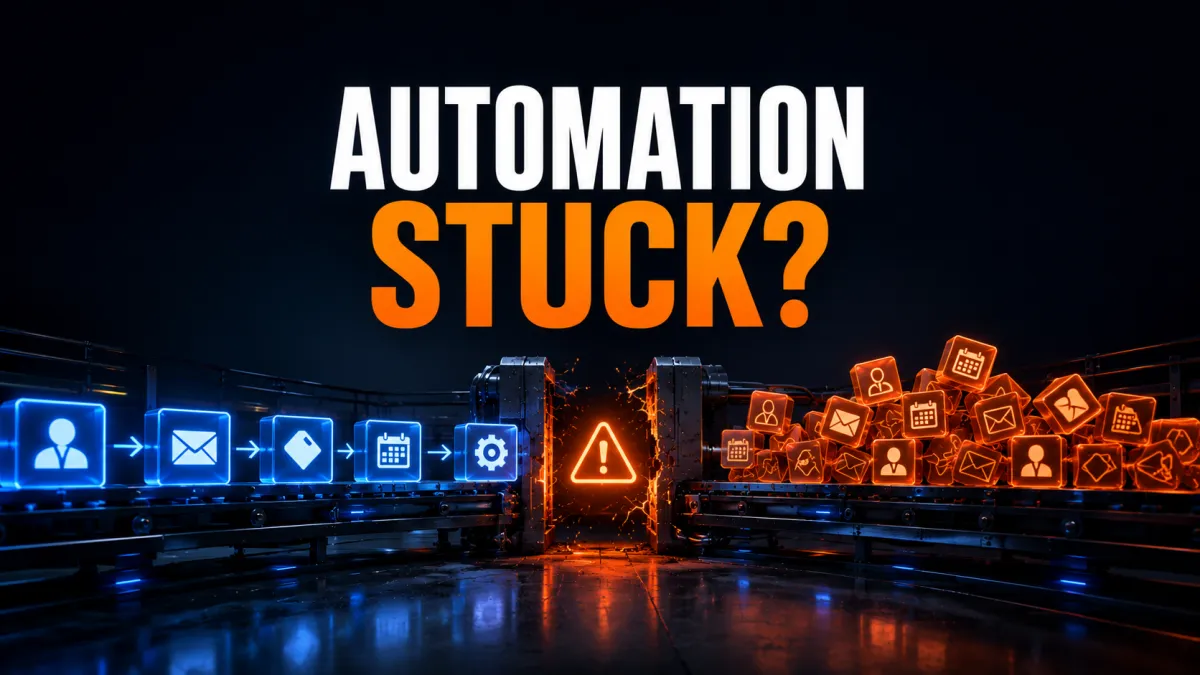
GoHighLevel Automation Not Working? Here's How to Fix It
If your GoHighLevel automation stopped working, you're not alone. It's one of the most common issues GHL users run into, and the frustrating part is that the workflow looks fine on the surface. No error messages, no obvious misconfiguration it just doesn't fire.
Most of the time, the fix is simpler than you think. This guide walks you through the most common reasons GoHighLevel automation stops working and exactly how to fix each one.
Check If the Workflow Is Actually Published
This sounds obvious, but it catches a lot of people out. GoHighLevel workflows sit in Draft mode by default. If you built the workflow but never toggled it to Published, it won't run ever.
Go to Automation → Workflows and look at the status column. If it shows Draft, flip it to Published. That's it.
Also worth checking: GHL automatically sets a workflow back to Draft if it triggers too many errors in a short window. So if your workflow was running fine and suddenly stopped, check the status first before digging deeper.
Your Trigger Conditions Aren't Being Met
The most overlooked cause of GoHighLevel workflow not triggering is the trigger filters. Users set up a trigger, add filters to narrow it down, and then forget those filters are there.
For example, you set a trigger to fire when a form is submitted but you also added a filter that requires the contact to have a specific tag. If that tag isn't applied before the form submission, the workflow won't start.
Go into the workflow, click the trigger, and review every filter applied. Remove any that aren't absolutely necessary and test again with a fresh contact.
The Contact Already Entered the Workflow
By default, GoHighLevel does not allow a contact to re-enter a workflow they've already been through. This trips up a lot of people during testing they run the same contact through multiple times and wonder why nothing happens after the first run.
Check the workflow settings and look for the Allow Re-entry option. If you're testing, turn it on temporarily. If this is a live workflow and contacts genuinely need to go through it more than once, enable re-entry based on your use case.

Integration Connections Are Broken
If your workflow includes a third-party integration Google Sheets, Stripe, Zoom, or similar a broken connection will stop the whole sequence dead. OAuth tokens expire. API keys get rotated. Someone reconnects an account and the old link breaks.
Go to Settings → Integrations and check that every connected service is still authenticated. If anything shows a warning or disconnected status, reconnect it.
One more thing: if you're using Zapier as a middle layer when a native GHL integration already exists, switch to the native connection. Zapier adds a point of failure you don't need, and native integrations are faster and more stable.
Use the Workflow History Tab to Find the Exact Problem
This is the most underused troubleshooting tool in GHL. Inside any workflow, there's a History tab that shows every contact who entered, every action that ran, and exactly where things stopped.
If your GHL automation is failing silently, this is where you find out why. Look for contacts that entered but didn't complete. Click into their history and you'll see the specific action that failed and often a reason why.
This saves hours of guessing. Always check the History tab before changing anything in the workflow itself.
Email Actions Not Firing? Check Your LC Email Setup
If your workflow is triggering but emails aren't sending, the issue is almost always with your LC Email configuration, not the workflow itself.
Three things to verify: your dedicated sending domain is fully verified inside GHL settings (not just pending), your DNS and DMARC records are correctly configured, and if your domain is new, you haven't ramped up volume too fast.
A misconfigured DMARC policy is the most common reason emails from GHL workflows suddenly stop hitting inboxes. Check your DNS records and make sure the DMARC policy isn't set to reject before your domain has warmed up properly.
Test With a Fresh Contact Every Time
When troubleshooting GoHighLevel workflow issues, always test with a brand new contact — not one that's been through the system before. Existing contacts often carry tags, history, or workflow statuses that interfere with your test.
Create a test contact from scratch, trigger the workflow manually, and watch the History tab in real time. This gives you a clean read on what's actually happening.

FAQ
Why is my GoHighLevel workflow not firing even though it's published? Check your trigger filters first. If any filter condition isn't being met, the workflow won't start even if it's published. Also check if the contact already went through the workflow and re-entry isn't enabled.
Why did my GHL automation stop working suddenly? GHL automatically pauses workflows that produce repeated errors. Check if the workflow has reverted to Draft status. Also verify that any third-party integrations in the workflow are still connected and authenticated.
How do I see why a workflow stopped mid-way? Open the workflow and click the History tab. Find the contact in question, click into their record, and you'll see exactly which action failed and why.
Does GoHighLevel allow a contact to go through the same workflow twice? Not by default. You need to enable Allow Re-entry inside the workflow settings. For appointment-based and invoice-based triggers, re-entry is allowed automatically for each new event.
If you've gone through all of this and your GoHighLevel automation still isn't working, the issue is likely deeper in your account setup and that's where it helps to have someone who builds in GHL every day take a look.
Bolder Digital is a certified GHL agency helping Australian businesses build, fix, and scale their GoHighLevel systems. If your automations are broken, unreliable, or just not performing the way they should, get in touch with the Bolder Digital team and we'll sort it out.