
How to Set Up GoHighLevel Step by Step (2025 Beginner's Guide)
If you've just signed up for GoHighLevel and have no idea where to start — you're not alone. GoHighLevel (GHL) is one of the most powerful all-in-one marketing platforms available today, but its dashboard can feel overwhelming when you log in for the first time. This guide walks you through exactly how to set up GoHighLevel step by step, from creating your account to launching your first automation.
Whether you're a solo consultant, a digital marketing agency owner, or someone who just signed up to manage clients, this GoHighLevel tutorial for beginners covers everything you need to get up and running fast — without the confusion.
What is GoHighLevel?
GoHighLevel is an all-in-one CRM, marketing automation, and funnel-building platform built specifically for agencies. It replaces tools like HubSpot, Mailchimp, ClickFunnels, Calendly, and Twilio — all under one roof, on one monthly subscription.
Table of Contents
Create your GoHighLevel account
Set up your agency profile and branding
Create your first sub-account
Set up your CRM and add contacts
Connect your email and SMS
Build your first pipeline
Create your first automation workflow
Build a funnel or landing page
Set up your calendar and booking system
Frequently asked questions
Step 1: Create Your GoHighLevel Account
The first step in your GoHighLevel setup guide is getting your account live. GoHighLevel offers a 14-day free trial, so you can explore every feature before committing to a paid plan.
Here's how to get started:
Go to gohighlevel.com and click "Start Free Trial"
Enter your agency name, email, and phone number
Choose your plan the Agency Starter Plan works for beginners managing a few clients
Complete the onboarding questionnaire, which personalises your dashboard
Verify your email and log in to your new account
Pro Tip: Use your agency's business email when signing up, not a personal Gmail. This keeps things professional if you later enable white-label features for your clients.
Step 2: Set Up Your Agency Profile and Branding
Before you do anything else in your GoHighLevel for agencies account, get your agency profile set up. This is the foundation everything else builds on.
Navigate to Settings → Agency Settings
Upload your agency logo and set your brand colours
Add your business address, phone number, and timezone
Set your default currency and date format
If you plan to white-label GHL, configure your custom domain here
Taking 10 minutes here saves you from fixing branding inconsistencies across all your client accounts later. Every sub-account you create will inherit these defaults.
Step 3: Create Your First Sub-Account
In GoHighLevel, each client you manage lives inside a sub-account. Think of the agency dashboard as your command centre and each sub-account as a separate workspace for each client. This is one of the most important concepts to understand when learning how to use GoHighLevel.
From the agency dashboard, click "+ New Sub-Account"
Enter the client's business name, address, phone, and website
Choose a snapshot — a pre-built template — to fast-track the setup. GHL offers snapshots for real estate, dental, gyms, restaurants, and more
Assign a timezone and industry category
Click Save and open the sub-account to continue setting it up
Pro Tip: Always use a Snapshot when creating a new sub-account. Snapshots come pre-loaded with funnels, automations, and pipelines tailored to the client's industry — this alone saves hours of setup work per client.
Step 4: Set Up Your CRM and Add Contacts
The GoHighLevel CRM setup is where your leads and customers live. Getting this right from the start means every automation, email, and SMS you send will have clean, organised data behind it.
Inside the sub-account, go to Contacts in the left sidebar
Click Import Contacts to upload a CSV of existing leads
Map your CSV columns to GHL fields — name, email, phone, tags, and so on
Create Custom Fields for any data specific to your client's business, such as appointment date or budget range
Set up Smart Lists to segment contacts by tags, source, or status
Tags are your best friend in GHL's CRM. Tag contacts by where they came from (Facebook Ad, Google, Referral), what stage they're at (New Lead, Booked, Sold), and what service they're interested in. These tags drive your automations later.
Step 5: Connect Your Email and SMS
To send emails and text messages directly from GoHighLevel, you need to connect your communication channels. This step is essential — without it, your automations and campaigns won't fire.
Email Setup:
Go to Settings → Email Services inside the sub-account
For most beginners, use LC Email, GoHighLevel's built-in email system — no external setup needed
To use your own domain email, connect via SMTP using Gmail, Mailgun, SendGrid, or Postmark
Verify your sending domain in DNS to improve deliverability
SMS Setup:
Go to Settings → Phone Numbers
Use LC Phone for the easiest setup purchase a number directly inside GHL
Alternatively, connect a Twilio account for advanced SMS features
Set up A2P 10DLC registration if you're sending SMS in the US, as this is required by carriers
Important: Always warm up a new email sending domain gradually. Start with 50 to 100 emails per day and increase over two to three weeks. Sending bulk emails from a cold domain kills your deliverability instantly.
Step 6: Build Your First Pipeline
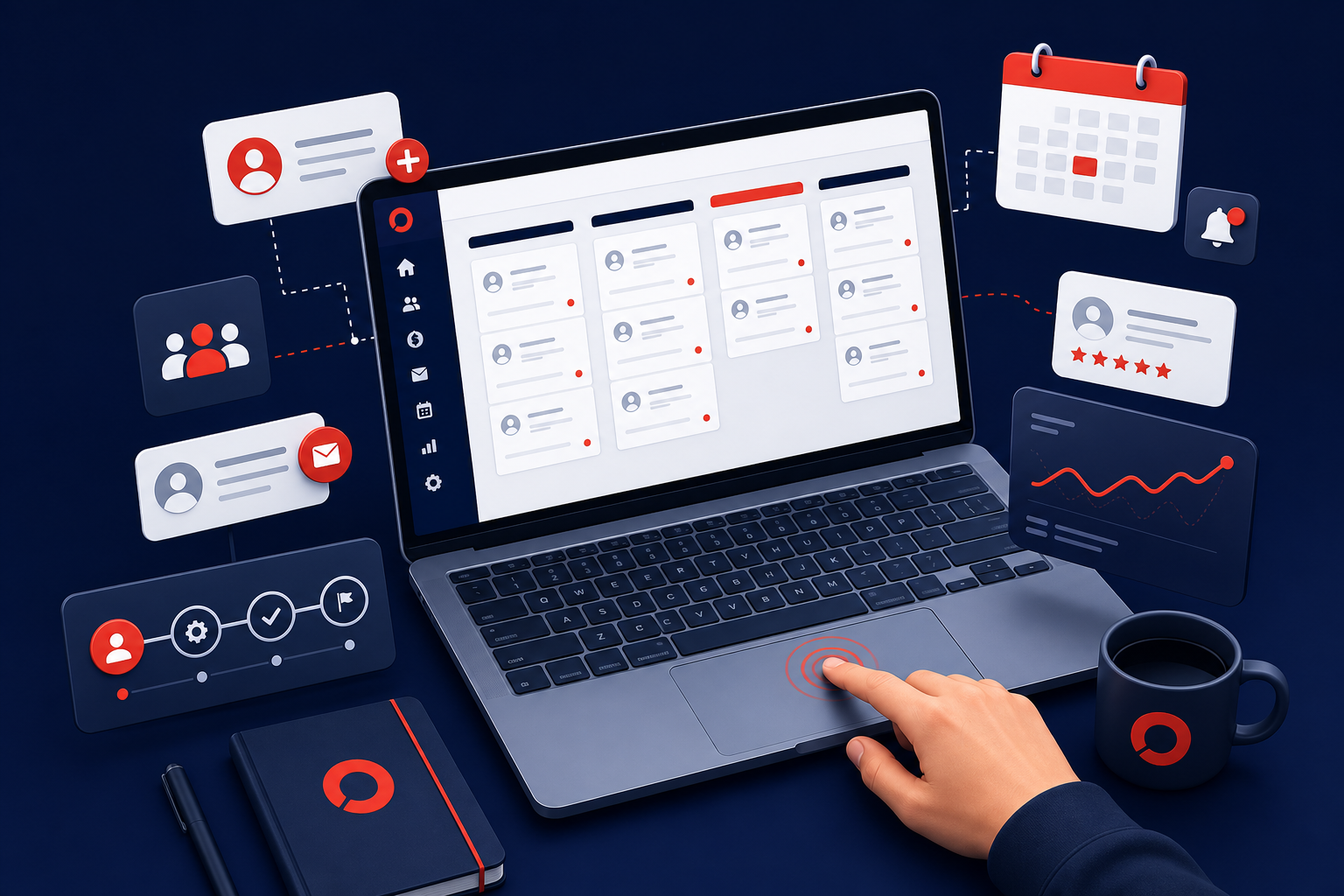
A pipeline in GoHighLevel is a visual sales board — like a Kanban board — that shows you where every lead is in your sales process. Setting up a pipeline is a core part of any GoHighLevel setup guide because it's how you track and move leads toward a sale.
Go to CRM → Pipelines and click "Add Pipeline"
Name your pipeline, for example "Lead to Client Pipeline"
Add stages that match your sales process — New Lead, Contacted, Booked, Proposal Sent, Won, Lost
Drag and drop contacts into the right stage as deals progress
Set up automation triggers to move contacts between stages automatically
Step 7: Create Your First Automation Workflow
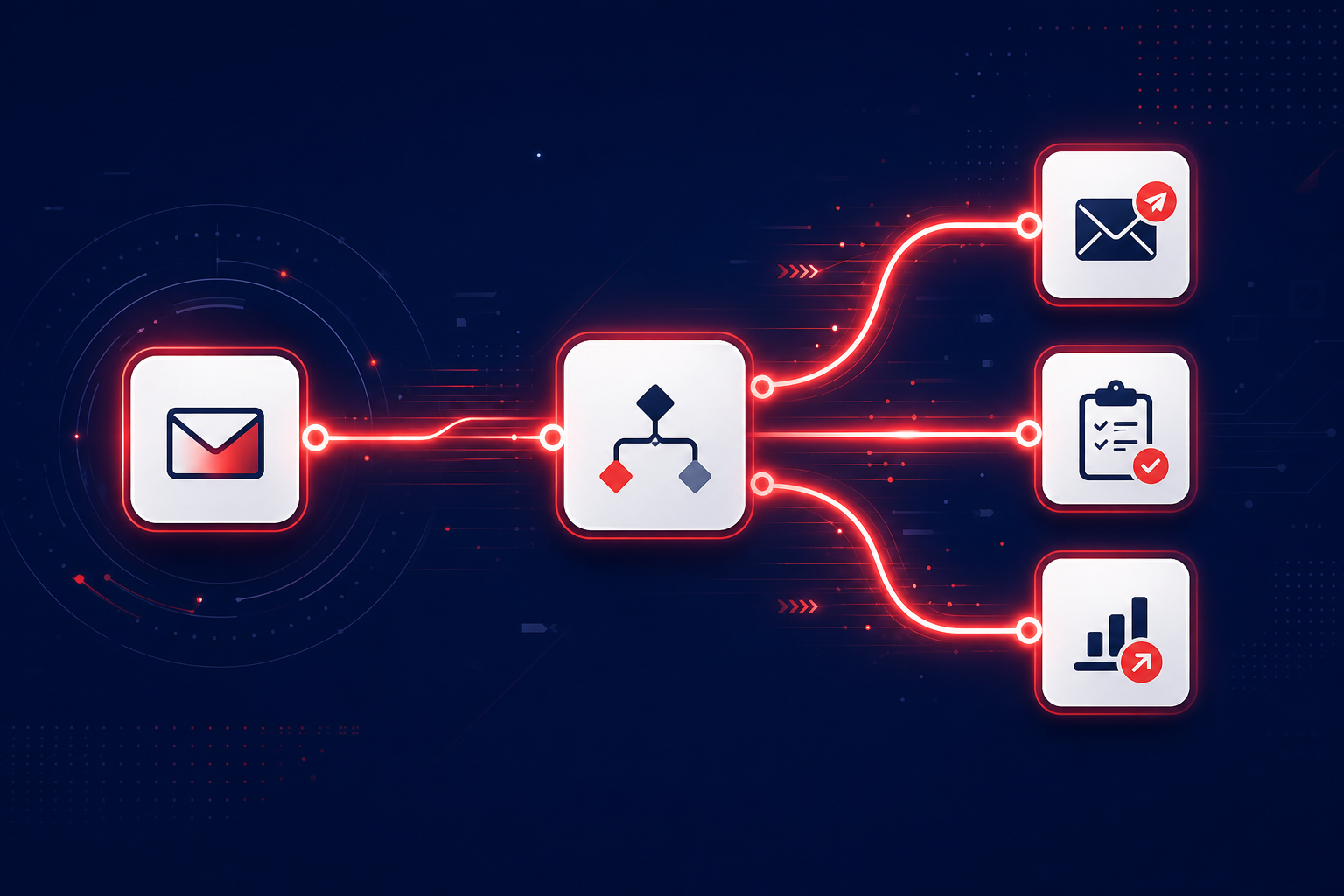
This is where GoHighLevel becomes genuinely powerful. Automations let you follow up with leads, send appointment reminders, and nurture prospects — all without lifting a finger. If you want to understand how to use GoHighLevel at its full potential, mastering automations is non-negotiable.
Go to Automation Workflows and click "Create Workflow"
Choose a trigger for example, Contact Created, Form Submitted, or Tag Added
Add actions: Send Email → Wait 1 Day → Send SMS → Wait 2 Days → Send Follow-up Email
Use If/Else branches to personalise the flow based on what the contact does, such as opening an email, booking, or replying
Test the workflow on a dummy contact before going live
Toggle the workflow to Published when ready
Pro Tip: Start with a simple five-touch follow-up sequence an instant SMS on day zero, an email on day one, an SMS on day three, an email on day seven, and a final email on day fourteen. Most leads convert between touch three and touch five. The fortune is in the follow-up.
Step 8: Build a Funnel or Landing Page
GoHighLevel's built-in funnel builder lets you create landing pages, opt-in forms, sales pages, and full multi-step funnels without needing ClickFunnels or any other tool.
Go to Sites → Funnels and click "New Funnel"
Give your funnel a name and set the domain — you can use a GHL subdomain or your own custom domain
Add funnel steps: Opt-in Page → Thank You Page for a simple lead capture
Use the drag-and-drop builder to design each page add headlines, forms, images, videos, and CTAs
Connect the form submission to a workflow so every new lead gets an automatic follow-up
Test the funnel by submitting the form yourself and confirming the contact appears in the CRM
Step 9: Set Up Your Calendar and Booking System
GoHighLevel has a fully built-in appointment scheduling system that replaces Calendly. Once you set this up, clients and leads can book directly into your calendar and GHL handles all the reminder messages automatically.
Go to Calendars and click "Create Calendar"
Set your availability hours, meeting duration, and buffer time between appointments
Connect your Google Calendar or Outlook to prevent double-bookings
Set up confirmation emails and SMS reminders to reduce no-shows
Embed the booking widget on your funnel or website, or share the direct booking link
Pro Tip: Set up a three-part reminder sequence for every booking — a confirmation immediately after booking, a reminder 24 hours before, and a reminder one hour before. This alone cuts no-show rates by 60 to 70 percent.
Frequently Asked Questions
How long does it take to set up GoHighLevel from scratch? A basic GoHighLevel setup — account, CRM, one pipeline, email connected, and a simple automation — takes most beginners four to eight hours. Using a Snapshot template can cut that in half. A full agency setup with multiple sub-accounts, custom funnels, and advanced automations typically takes two to five days.
Do I need coding skills to use GoHighLevel? No. GoHighLevel is entirely no-code. Every feature — funnels, automations, CRM, email campaigns, SMS — is built using drag-and-drop editors and visual workflow builders. You don't need to write a single line of code.
What's the difference between GoHighLevel plans? GoHighLevel offers an Agency Starter Plan with one sub-account and basic features, and an Agency Unlimited Plan with unlimited sub-accounts, white-labelling, and SaaS mode. For agencies managing multiple clients, the Unlimited Plan is better value — the cost per client drops significantly as you scale.
Can I use GoHighLevel for my own business and not just clients? Absolutely. Many agency owners use GHL for their own lead generation, email marketing, and CRM alongside managing client accounts. You simply create a sub-account for your own business, the same way you would for a client.
Is GoHighLevel worth it for beginners? Yes — if you're serious about growing a digital marketing agency or automating your client acquisition. The learning curve is real, but once you understand the platform, GoHighLevel replaces 10 or more separate tools and pays for itself quickly. The key is taking the setup step by step, which is exactly what this guide helps you do.
Conclusion
Learning how to set up GoHighLevel step by step doesn't have to be complicated. Start with your account and agency profile, build out your first sub-account using a snapshot, connect your email and SMS, set up your CRM and pipeline, and then layer in automations and funnels as you grow comfortable with the platform.
GoHighLevel is genuinely one of the best investments a digital marketing agency can make. The setup takes time upfront, but once it's running, it works for you around the clock.